Try this workflow
AI photo enhancer for natural-looking corrections
Prompt recipes 1
Prompt recipes 2
Prompt recipes 3
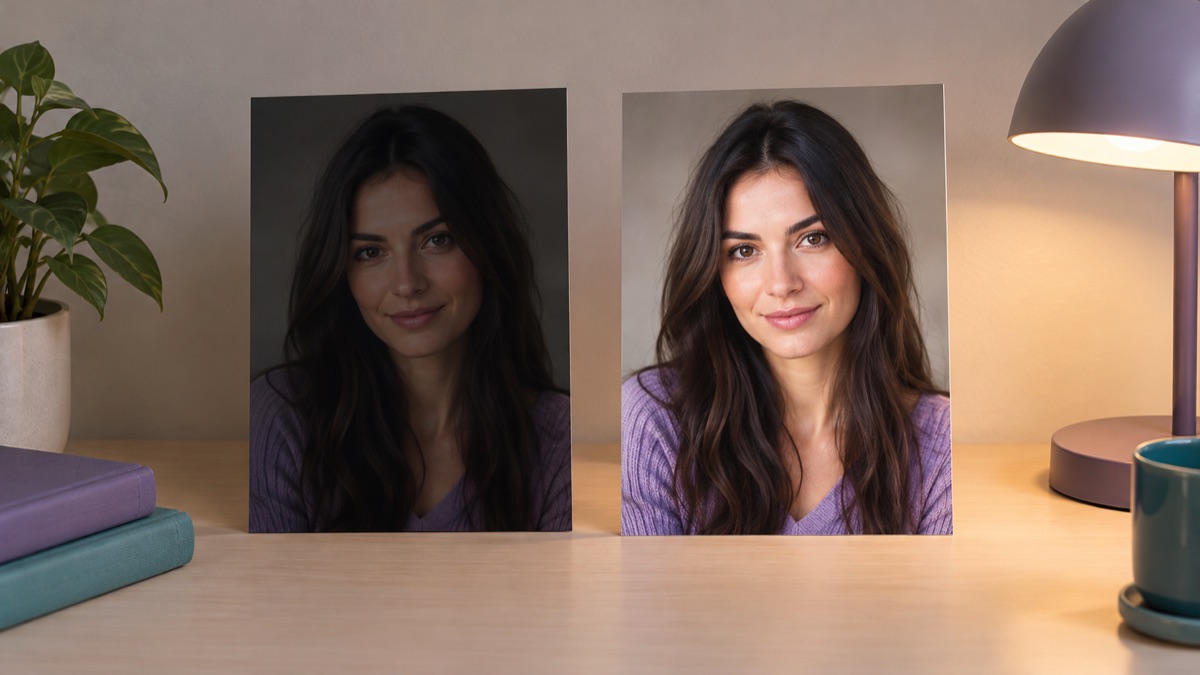
Enhancement should be invisible. The photo looks better, but the person still looks like the person and the place still looks like the place. That is a different goal from restoration, which repairs damage, and a different goal from generation, which invents a new scene.
This guide is for photos that are technically weak but not damaged: too dark, too flat, too noisy, or a little soft.
The short answer
Name the specific problem. Ask for balanced exposure, natural skin texture, and intact highlights. Keep the composition and identity unchanged. Compare at 100 percent. If the result looks painted, reduce the scope and try again.
What enhancement should change
A good enhancement can:
- Lift underexposed shadows.
- Recover detail in bright areas.
- Reduce visible noise.
- Add gentle contrast.
- Correct a color cast.
- Improve perceived sharpness.
It should not:
- Replace the background.
- Change the person's face or body.
- Invent objects that were not there.
- Add heavy makeup or plastic skin.
- Turn a night photo into daylight.
- Make a blurry photo look like a different scene.
The line is interpretation. A small correction is enhancement. A new scene is generation.
Step 1: diagnose the photo
Before writing a prompt, name the problem.
| Symptom | Likely correction |
|---|---|
| Too dark | Lift shadows, protect highlights |
| Too flat | Add gentle contrast, deepen blacks |
| Too noisy | Reduce noise, keep texture |
| Soft focus | Add subtle sharpness, do not overdo |
| Color cast | Neutralize white balance |
| Blown highlights | Recover highlights, reduce exposure |
| Mixed lighting | Balance the dominant light, keep the mood |
One correction per run is easier to judge. If the photo is both dark and noisy, fix the exposure first, then reduce noise.
Step 2: write the preservation sentence
Preserve the original composition, the person's recognizable face, skin tone, age, and natural skin texture. Keep the background and the objects unchanged. Do not add or remove anything.
For a product:
Preserve the product's shape, color, label text, and logo placement. Keep the background unchanged.
For a landscape:
Preserve the scene, the horizon, and the cloud structure. Do not add or remove objects.
Step 3: write the correction sentence
Be specific about the direction and the limit.
Lift the shadows by about one stop, recover the highlights in the window, and add gentle contrast. Keep the skin natural and the colors believable.
Reduce the visible noise in the shadows while keeping the texture in the hair and fabric. Do not smooth the face.
Neutralize the yellow cast from the indoor light, keep the warm mood, and preserve the skin tone.
Numbers are not precise controls, but they communicate intent. "About one stop" is more useful than "make it brighter."
Step 4: protect skin and highlights
The two most common over-processing failures are plastic skin and blown highlights.
Add these constraints:
- Keep natural skin texture and pores.
- Do not smooth or beautify the face.
- Keep the highlights intact; do not clip to white.
- Keep the colors believable; do not oversaturate.
- Keep the noise reduction gentle.
If the model removes all the texture, the face looks like a mannequin. If it clips the highlights, the window or the sky becomes a white shape with no detail.
Step 5: compare at 100 percent
Open the original and the result side by side at 100 percent.
Check:
- Eyes and teeth.
- Skin texture.
- Hair strands.
- Text and labels.
- Highlights and shadows.
- Background detail.
- Color consistency.
If the result looks better at thumbnail size but worse at full size, it is not an enhancement.
Enhancement versus restoration
Enhancement improves a technically weak photo. Restoration repairs damage.
| Problem | Enhancement | Restoration |
|---|---|---|
| Dark exposure | Yes | Sometimes |
| Noise | Yes | Sometimes |
| Color cast | Yes | Sometimes |
| Scratches | No | Yes |
| Creases | No | Yes |
| Missing corner | No | Sometimes |
| Faded print | Sometimes | Yes |
| Missing face | No | Not reliably |
If the photo has physical damage, use the photo restoration guide. If it is only weak, enhancement is the right tool.
Common mistakes
Asking for "better quality." The model has no specific target. Name the problem.
Over-sharpening. A little sharpness helps; too much creates halos.
Smoothing the skin. Texture is what makes a face look real.
Changing the composition. An enhancement should not crop or reframe.
Using a heavily compressed source. Compression artifacts are hard to distinguish from noise.
Expecting a blurry photo to become sharp. The model can add perceived sharpness, but it cannot recover detail that was never captured.
A reusable enhancement prompt
Use the uploaded photo as the reference.
Preserve the composition, the person's recognizable face, skin tone,
age, and natural skin texture. Keep the background unchanged.
Problem: [too dark / flat / noisy / color cast / soft].
Correction: [specific change with a limit].
Keep the highlights intact and the colors believable.
Do not beautify, slim, or de-age the face.
Do not add or remove objects.
Photorealistic, natural result.
When to leave the photo alone
Some photos are better unedited:
- A documentary or journalistic image.
- A photo with strong intentional mood.
- A photo where the noise is part of the aesthetic.
- A photo that will be used as evidence.
- A photo that is already well exposed.
Enhancement is a tool, not a default. Use it when the photo has a specific technical problem.
Try the workflow
The AI photo enhancer page opens the workspace in image-to-image mode with three correction prompts. You can copy a prompt without an account. A generation uses credits; the pricing page lists the current packs and plans.
If the photo is damaged, use the restoration guide. If the background is the problem, start with the background changer guide.