Dim phone photos
Lift a dark indoor shot without turning the walls gray or the skin orange.
Photo cleanup
Enhancement should be invisible: the photo looks better, but the person and the place still look real. This workflow is for exposure, noise, clarity, and color balance, not for replacing the scene or inventing a new face.
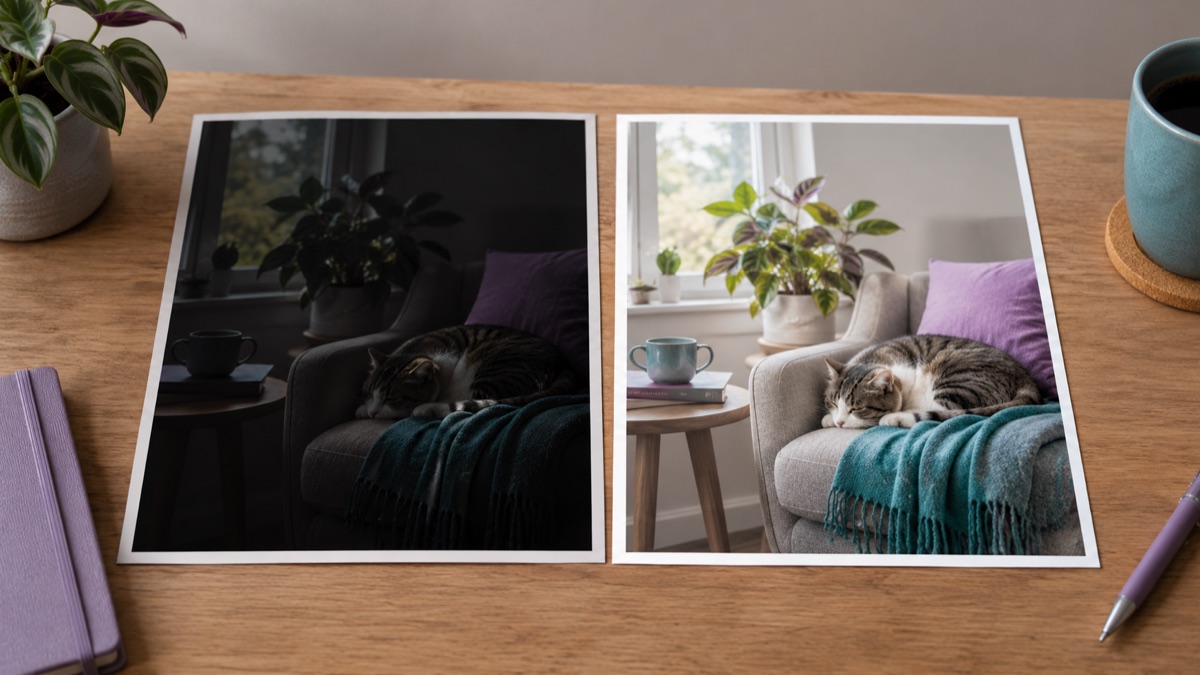
A good enhancer lifts exposure, recovers shadow detail, reduces noise, and adds gentle contrast without plastic skin or oversaturated color. It should preserve the original composition, identity, and the reason the photo was taken.
Say whether the photo is too dark, too flat, noisy, or soft. One correction per run is easier to judge than a general request to make it better.
Ask for natural skin texture and intact highlights. Those two constraints prevent the most common over-processed look.
Check eyes, teeth, hair, and any text. If the result looks painted, reduce the scope and try again.
The page opens with the matching mode selected. Upload a file, edit the prompt, and sign in when you are ready to spend credits.
Use a publicly accessible URL (jpg/png/webp/gif/avif). No public link handy? Upload to store it on R2 and auto-fill the URL.
Uploads are stored only to run your edit. Privacy Policy
500 credits · about 5 image edits · one-time
Nothing generated yet
Upload only images you have the rights to use. Files are sent to the storage and model providers needed to produce the result.
Describe the correction, not a new scene. Keep the identity and texture constraints.
Lift shadows
Reduce noise
Natural color
Lift a dark indoor shot without turning the walls gray or the skin orange.
Make product photos brighter and cleaner while keeping the label and color accurate.
Recover detail in backlit scenes and reduce noise in evening shots.
Add gentle contrast and warmth without making the dish look artificially glossy.
Enhancement improves a technically weak photo; restoration repairs damage such as scratches, creases, and missing areas. Do not ask an enhancer to invent a missing face. If the source is badly damaged, use the photo restorer workflow.
The prompt should preserve identity and skin texture. Still compare the eyes, nose, and jawline; enhancement models can subtly reshape a face.
It can add perceived sharpness, but it cannot recover detail that was never captured. Treat a blurry result as an interpretation, not a factual restoration.
Yes, but keep the label and color accurate. A prettier image that misrepresents the product is a liability for a store.
It should not if you ask for the composition to stay unchanged. Check the edges and any text in the background.
Each image is a separate generation. For a large catalog, use a consistent prompt and compare a few results before processing the rest.
No. The workspace returns a new image. Keep the original file as the reference and for future edits.
AI photo restorer for damaged family photos
Repair scratches, creases, fading, and dust in old family photos while keeping faces, clothing, and the period look recognizable.
AI image editor for prompt-based photo edits
Edit a photo by describing the change: swap clothes, clean a background, adjust light, or restyle a portrait. Upload once, compare the result, and download.
AI product photo editor for marketplace listings
Move a product onto a clean studio set, add a natural shadow, and keep the label readable. Built for marketplace and storefront photos.