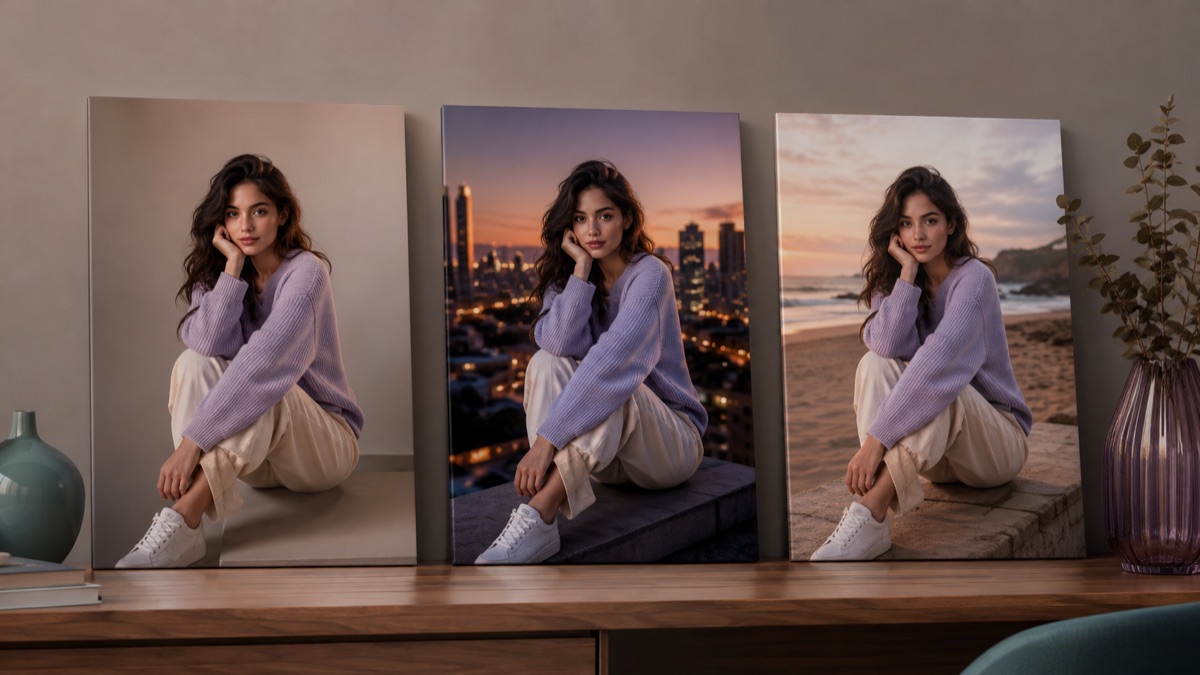
Try this workflow
AI background changer for portraits and products
Prompt recipes 1
Prompt recipes 2
Prompt recipes 3
A background replacement is a lighting problem disguised as a cutout problem. Most bad results do not fail because the model could not separate the subject. They fail because the new background does not share the original light, shadow, or perspective. The subject looks pasted in, even when the edges are clean.
This guide explains how to get a believable replacement with a prompt-based editor, and when a dedicated cutout tool is the better choice.
The short answer
Match the new scene to the original light direction, keep the subject sentence explicit, and inspect hair, glasses, transparent fabric, and contact shadows at full size. For products, protect the label and the product's exact color. For people, protect identity and pose. Do not ask the model to change the person and the background in the same run unless you are prepared to iterate.
What the tool changes
A prompt-based background changer does more than remove pixels. It can rebuild the area around the subject, including the surface, the shadow, and the light on the subject's edges. That is what makes the result look natural, and it is also what makes it unpredictable.
A simple cutout leaves the subject exactly as it was and places it on a new background. A generative replacement can relight the subject to match the new scene. The second approach looks better when it works, but it can also change the clothing, the hair, or the face. Your prompt has to protect what matters.
Start with the light, not the location
The most common failure is a subject lit by warm window light placed in a cool blue studio. The model may try to relight the subject, but the result often looks like two photographs stacked together.
Before you describe the location, describe the light:
- Direction: left, right, front, back, top.
- Quality: soft window light, hard noon sun, overcast, neon.
- Color: warm, neutral, cool.
- Shadows: soft contact shadow, long cast shadow, no shadow.
Then choose a background that makes sense for that light. A soft window-lit portrait fits a quiet interior, a shaded courtyard, or an overcast street. It does not fit a harsh desert noon unless you want a deliberate mismatch.
Write the subject sentence first
The subject sentence is the protection clause. It should be specific to the type of image.
For a person:
Preserve the person's recognizable face, facial proportions, skin tone, age, hair, pose, clothing, and the same number of people. Do not change the body shape.
For a product:
Preserve the product's exact shape, color, material, label text, logo placement, and the number of items. Do not add accessories.
For a pet:
Preserve the animal's breed, fur color, markings, eye color, and anatomy. Do not change the species or add another animal.
Put this sentence before the background description. The model reads the whole prompt, but the order helps you keep your own priorities straight.
Describe the background in three layers
A background description works better when it has depth. Name the surface, the middle distance, and the far distance.
Example for a portrait:
Place the subject in a quiet studio with a warm gray seamless wall behind them, a soft contact shadow on the floor, and a gentle falloff into the corners. Keep the depth of field shallow.
Example for a product:
Place the product on a clean marble surface with a subtle reflection, a beige gradient backdrop, and a soft shadow to the lower right. Keep the label facing the camera.
Example for a lifestyle scene:
Place the subject at a wooden desk near a window with morning light, a blurred plant in the middle distance, and a plain wall behind. Keep the scene uncluttered.
Three layers give the model enough structure without turning the prompt into a novel.
Handle hair, glasses, and transparent materials
These are the hard edges.
Hair. Fine strands are where a replacement shows first. Ask for a natural hair edge and inspect the outline at 100 percent. If the original background was busy, the model may keep some of it in the hair.
Glasses. Frames can bend, lenses can lose reflections, and the background can show through the lenses incorrectly. Check the frame shape and the reflection.
Transparent fabric and glass. The new background should show through the material. If the model paints the material opaque, the result looks like a cutout.
Fur and feathers. Similar to hair: the edge is soft and detailed. Inspect the silhouette.
If an edge fails, do not rerun the whole scene with a longer prompt. Run a second pass focused on the edge, or use a dedicated cutout tool for that image.
Shadows make or break the result
A subject with no shadow floats. A subject with two shadows looks composited. A subject with a shadow in the wrong direction looks wrong even if the viewer cannot explain why.
Ask for one clear shadow behavior:
- A soft contact shadow directly under the subject.
- A longer cast shadow to the lower left, matching a window on the left.
- A reflection on a glossy surface.
- No shadow, for a clean catalog cutout.
Then check the shadow's direction against the light on the subject's face or product label.
A reusable background prompt
Use the uploaded photo as the primary reference.
Preserve [the person's face, hair, pose, clothing, identity] /
[the product's shape, color, label, and logo placement].
Replace the background with [surface], [middle distance], [far distance].
Match the original light direction: [direction and quality].
Add [one shadow behavior].
Keep the subject's edges natural, especially hair and transparent areas.
Do not add people, text, logos, or new objects.
Photorealistic, natural color, realistic texture.
Product-photo caveats
For ecommerce, accuracy beats beauty. A background change is fine, but a product edit that changes the label, the color, or the included accessories can create returns and trust problems.
- Keep the product label readable and correctly spelled.
- Keep the product color accurate; do not let a warm background shift the product hue.
- Do not add props that look included in the box.
- Keep the product's proportions; a wider background should not stretch the item.
- Check marketplace rules on edited and synthetic images.
If the marketplace requires a pure white background, describe a seamless white surface with even light, then check the actual pixel values at the edges. A visually white background is not always the exact white required by a listing.
When to use a cutout instead
Use a dedicated background-removal tool when:
- You need a transparent PNG.
- You need an exact mask for a composite.
- The subject is a simple object with clean edges.
- You need repeatable, identical results across a catalog.
- You do not want the subject relit.
Use a generative replacement when:
- You need a new scene with matching light and shadow.
- The subject needs to belong in the new environment.
- You are creating a concept or a marketing image.
- You can inspect and iterate.
Common mistakes
Changing the person and the background at once. The model has too many degrees of freedom. Protect the person, change the background.
Choosing a background with the wrong light. A beautiful scene with the wrong light direction will look fake.
Ignoring the contact shadow. The subject will float.
Trusting a thumbnail. Hair, glasses, and label text fail at full size.
Using a busy original. A cluttered background gives the model more chances to leave residue around the subject.
Try the workflow
The AI background changer page opens the workspace in image-to-image mode with three scene prompts. You can copy a prompt without an account. A generation uses credits; the pricing page shows the current packs and plans.
For a product-specific workflow, read the product photo guide. For a portrait that needs a full professional treatment, start with the headshot guide.