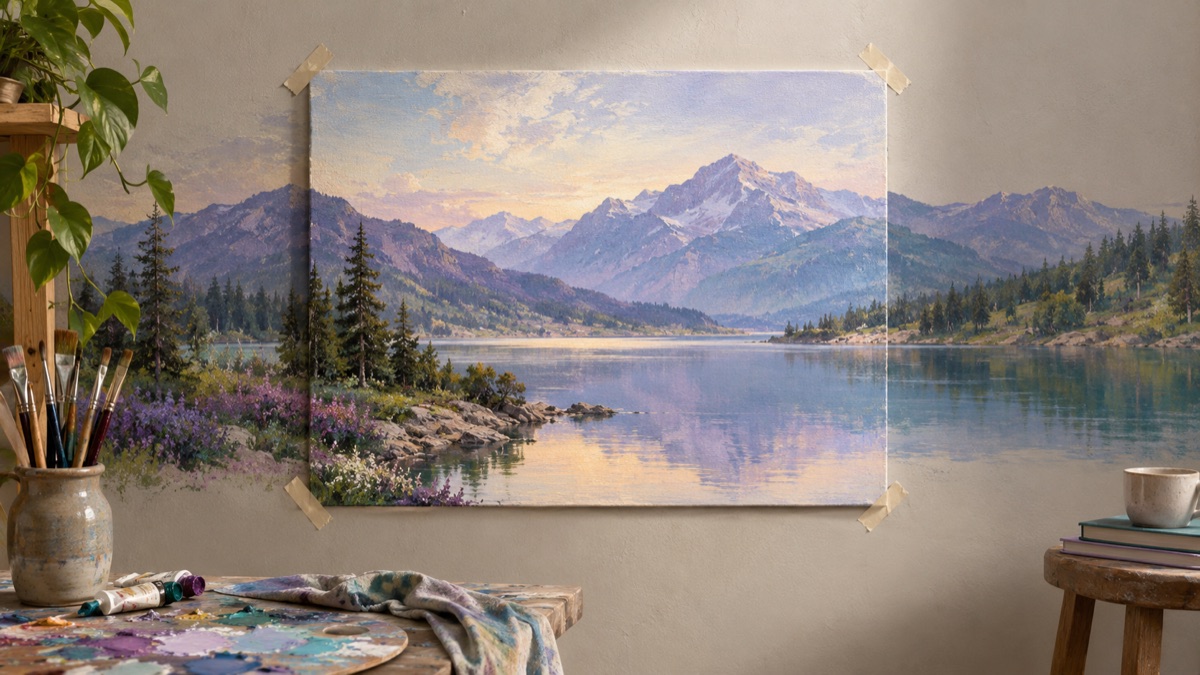
Try this workflow
AI image extender for wider frames and clean crops
Prompt recipes 1
Prompt recipes 2
Prompt recipes 3
A tight crop is not always a composition mistake. Sometimes the photo was captured that way, and there is simply no more room around the subject. An AI image extender adds new pixels beyond the original edge so the frame can become wider or taller. It is useful, but it is also one of the easiest ways to produce an image that looks convincing until someone zooms in.
This guide covers the practical version: how much to extend, what to say in the prompt, where the seams fail, and when you should not use the tool at all.
The short answer
Extend in small steps. Name the target shape, the surface that should continue, and the light that must match. Inspect the original edge at 100 percent, not the thumbnail. If the extension is large, do it in two passes instead of one. Keep the original file.
What outpainting actually does
Outpainting generates new content around an existing image. The original pixels are the reference; the new area is invented. The model tries to continue the scene, but it does not know what was outside the frame. It makes a plausible guess from the visible information.
That distinction matters for honesty. An extended photo is not a wider photograph. It is the original photograph plus generated content. If the image is used as evidence, a product record, or a historical document, label the generated area or keep the original as the primary file.
When extending is the right tool
Extending is a good fit when the original content is strong and the frame is the only problem.
- A portrait that needs to become a 16:9 banner without cutting the subject.
- A product shot that needs empty space for a headline.
- A square photo that needs a vertical version for a story.
- A landscape that needs a little more sky or foreground for a print layout.
- A scene that needs to be wider before it can be used as a background.
It is a poor fit when the original is blurry, when the subject is cut off in a way that requires new anatomy, or when the new area needs to be factually correct. The model can invent a continuation; it cannot recover what was never photographed.
Step 1: choose the final shape before you write
The target ratio determines how much the model has to invent. A square photo extended to 16:9 adds a moderate amount on the left and right. The same photo extended to 21:9 adds much more.
| Original | Target | What changes | Risk |
|---|---|---|---|
| 1:1 | 4:5 | Small vertical extension | Low |
| 1:1 | 16:9 | Moderate horizontal extension | Medium |
| 1:1 | 21:9 | Large horizontal extension | High |
| 3:2 | 16:9 | Small horizontal extension | Low |
| 9:16 | 16:9 | Large horizontal extension | High |
Start with the smallest change that solves the layout problem. If you need a 21:9 banner, try 16:9 first, inspect the seam, then extend again. Two small passes are usually more reliable than one large jump.
Step 2: describe the continuation, not a new scene
The prompt should tell the model what to continue. It should not introduce new subjects.
Useful: "Extend this photo to a wider 16:9 frame. Continue the same wall, floor, and window light. Keep the subject, pose, and clothing identical. Do not add people or furniture."
Useful: "Add more sky above the mountain and more foreground below the trail. Continue the existing haze and the same sunrise direction. Keep the hiker and the path unchanged."
Weak: "Make it wider and more beautiful." The model has no instruction about what should fill the new area, so it will invent something arbitrary.
Name four things:
- The target ratio or direction (wider, taller, square).
- The surface that continues (wall, floor, sky, water, foliage).
- The light that must match (direction, softness, color).
- The subjects that must not be added or changed.
Step 3: protect the original edge
The original edge is where the seam appears. If the prompt changes the lighting across the whole frame, the new area can look like a different photograph. Ask for the existing light to continue rather than for a new light setup.
A useful phrase: "Keep the original area unchanged and continue its light, perspective, and color grading into the new area."
If the original has a strong vignette or a color cast, say so. A neutral new area next to a warm original will read as a pasted strip.
Step 4: inspect the seam correctly
Do not inspect the result as a small preview. Open it at 100 percent and look at the boundary between the original and the new area.
Check these:
- Is there a visible vertical or horizontal line?
- Does a straight edge (wall, table, horizon) bend at the boundary?
- Does the texture repeat in an obvious pattern?
- Does the new area have a different noise level or sharpness?
- Does the shadow direction match?
- Does the perspective converge to the same vanishing point?
If the seam is visible, a second pass can repair a small area. Ask for the seam to be blended while protecting both sides. If the whole extension is wrong, start over with a smaller target ratio.
Step 5: check the new anatomy
If the extension includes a person, the model may add a hand, an arm, or a second person in the new area. Check the full frame, not only the original subject.
For portraits, look at:
- Shoulders and arms at the edge of the original frame.
- Hands that were previously outside the crop.
- Hair that continues into the new area.
- Accessories such as bag straps or jewelry.
If the new anatomy is wrong, either extend less or explicitly say "do not add hands, arms, or additional people."
A reusable extender prompt
Use the uploaded photo as the exact reference for the original area.
Extend the frame to [target ratio] by adding [left/right/top/bottom] space.
Continue the existing [surface], [light direction], and [color grading].
Keep the subject, pose, clothing, and facial identity unchanged.
Do not add people, hands, text, logos, or new objects.
The new area should look like the same photograph, not a collage.
Replace the bracketed fields. Keep the "same photograph, not a collage" line; it helps the model aim for continuity rather than a new composition.
Common mistakes
Extending too far in one pass. Large extensions invite repetition and bent perspective. Use stages.
Asking for a new background while extending. If the new area is a different scene, the seam will show. Extend first, then edit the background in a separate pass.
Ignoring the original light. A new area with a different light direction makes the whole image look composited.
Judging at thumbnail size. The seam is often invisible in a preview and obvious in print.
Forgetting the original file. Keep the original; the extended version is a derivative.
Extending versus generating a panorama
An extender adds canvas around a photo. A panorama generator creates a wide scene from a prompt. They are different jobs.
- Use the extender when the original photo is the subject and you need more room.
- Use a panorama generator when you need a new wide scene.
- Do not call an extended photo a 360 panorama. A 360 image needs an equirectangular projection and a seamless wrap, which a general extender does not guarantee.
If your goal is a 360 workflow, read the 360 photo workflow and inspect the result in a viewer.
When not to extend
Do not extend when:
- The original is too blurry to support the new area.
- The subject is cut off at a joint and the new area needs accurate anatomy.
- The image is a legal, medical, or journalistic record.
- You need a measured reconstruction rather than a plausible continuation.
- The final use requires the whole frame to be a real photograph.
For those cases, reshoot, crop differently, or use a layout that works with the original frame.
Try the workflow
The AI image extender page opens the workspace in image-to-image mode with three extension prompts. Copy a prompt without an account; a generation uses credits from the shared balance. The pricing page lists the current packs and plans.
If you need a changed background rather than more canvas, use the background changer guide. If you need a wide scene from scratch, start with the panorama guide.