Website and ad banners
Turn a portrait or product shot into a wide 16:9 or 21:9 frame without cropping the subject.
Outpainting
A tight crop often cannot be fixed by zooming out: the pixels were never captured. An image extender asks the model to continue the scene beyond the original edge while keeping the subject and lighting consistent.
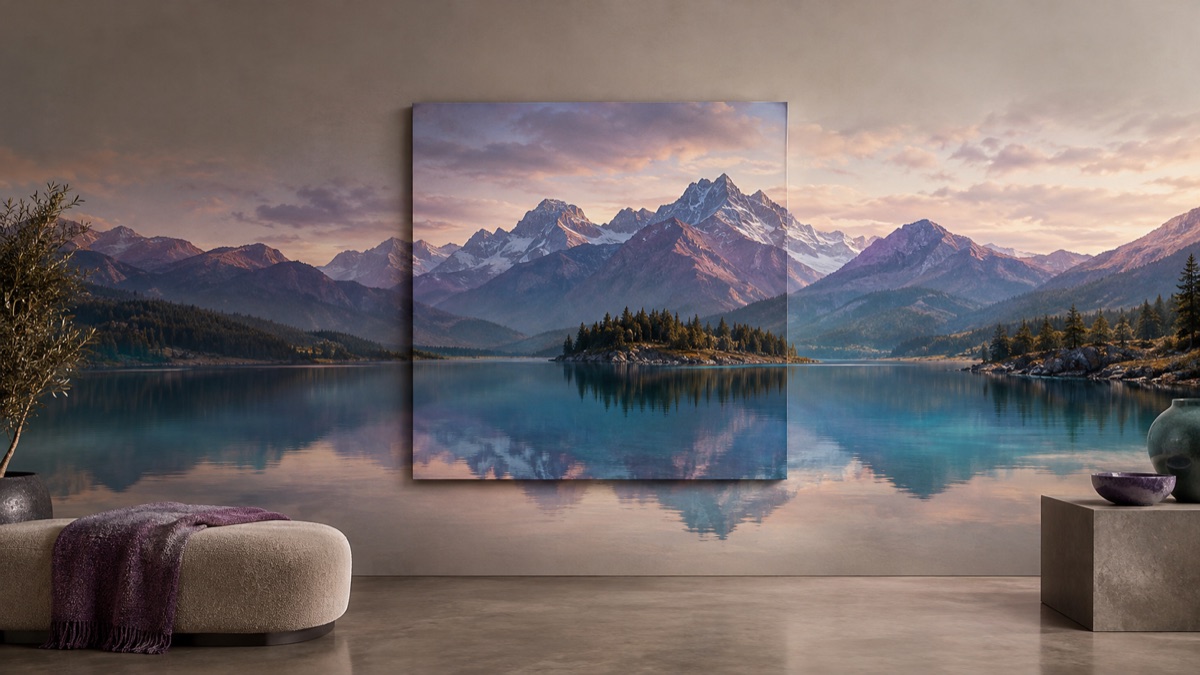
It generates new pixels around an existing image so the frame becomes wider or taller. The original area stays as the reference, and the model invents the continuation: more wall, more sky, more floor, or more background. It is useful for banner crops, print layouts, and breathing room around a subject.
Decide whether you need a wider banner, a taller poster, or a square social crop. The target ratio changes how much the model has to invent.
Say what should appear in the new area: the same wall, a continued horizon, matching foliage, or empty space for a headline.
Zoom in on the original edge. Look for a visible line, repeated texture, or a perspective that bends. A second pass can repair a small seam.
The page opens with the matching mode selected. Upload a file, edit the prompt, and sign in when you are ready to spend credits.
Use a publicly accessible URL (jpg/png/webp/gif/avif). No public link handy? Upload to store it on R2 and auto-fill the URL.
Uploads are stored only to run your edit. Privacy Policy
500 credits · about 5 image edits · one-time
Nothing generated yet
Upload only images you have the rights to use. Files are sent to the storage and model providers needed to produce the result.
State the target ratio, what continues, and what must not move.
Wide banner
More headroom
Continue the scene
Turn a portrait or product shot into a wide 16:9 or 21:9 frame without cropping the subject.
Add margin for a title, logo, or caption while keeping the photo as the hero.
Create a square or vertical version from a horizontal original without losing the main subject.
Extend a scene horizontally before inspecting whether it is suitable for a panorama workflow.
If the original is blurry, the new area can look sharper than the source and expose the seam. Large extensions also invite repeated patterns. Keep the original, compare at 100 percent, and do not assume the result is a true panorama or a measured reconstruction.
No. Extending adds new area around the image; upscaling tries to increase resolution inside the existing frame. This page is about adding canvas, not about inventing detail inside the original.
Yes, but check the body and hands in the new area. The model may add a duplicated limb or an extra person when the extension is large.
Small extensions are more reliable. Large ones need more invention and are more likely to repeat textures or bend perspective. Extend in stages if the target is much wider.
They usually match closely when the prompt names the existing light and surface. Inspect the transition at full size; a slight color shift is common.
Only after checking resolution and the seam at the final print size. Keep the original file and note that the new area is generated, not captured.
An equirectangular photo needs its projection preserved, which a general extender does not guarantee. Use the 360 image editor page for panorama-specific work and inspect the seam.
AI image editor for prompt-based photo edits
Edit a photo by describing the change: swap clothes, clean a background, adjust light, or restyle a portrait. Upload once, compare the result, and download.
Panorama image generator for wide scenes
Generate a wide panoramic scene from a prompt: mountain lakes, interiors, or city skylines. Choose a wide ratio and inspect the edges before use.
AI background changer for portraits and products
Replace a photo background with a studio, street, interior, or clean product set. Keep the subject and clothing while the scene changes around them.