Try this workflow
Panorama image generator for wide scenes
Prompt recipes 1
Prompt recipes 2
Prompt recipes 3
A wide image is not automatically a panorama. A panorama has a continuous horizon, a believable sense of distance, and enough variation to fill the frame without repeating itself. A stretched square image has none of those things.
This guide explains how to write a prompt that fills a wide frame, how to choose the ratio, and how to inspect the result before using it as a banner, a background, or a concept.
The short answer
Choose a scene with a strong horizon: a landscape, an interior, or a skyline. Name the foreground, the middle distance, the far distance, and one light direction. Use the widest ratio the live selector supports. Inspect both ends for repeated objects and a fading horizon. Do not call the result a 360 photo unless you have verified the projection.
What makes a wide scene work
A wide frame has more room, so it needs more structure. Three layers do most of the work:
- Foreground: something close that anchors the viewer, such as a rock, a table, a path, or a plant.
- Middle distance: the main subject or the space that carries the eye across the frame.
- Far distance: the horizon, the skyline, or the back wall that gives depth.
If you only describe one layer, the model will stretch it. If you describe all three, the image has depth even at a wide ratio.
Choose the right scene
Some scenes are naturally panoramic:
- Mountain ranges and lakes.
- Coastlines and harbors.
- City skylines at blue hour.
- Long interiors with windows.
- Fields, deserts, and roads.
- Concert halls and galleries.
Some scenes fight the format:
- A close-up portrait.
- A single small product.
- A scene with no horizon or depth cues.
- A detailed pattern that will repeat.
If you need a wide image of a portrait or a product, use an extender or a layout with negative space instead of forcing a panorama.
Write the prompt in four lines
A reliable panorama prompt has four parts.
Line 1: the scene and the horizon.
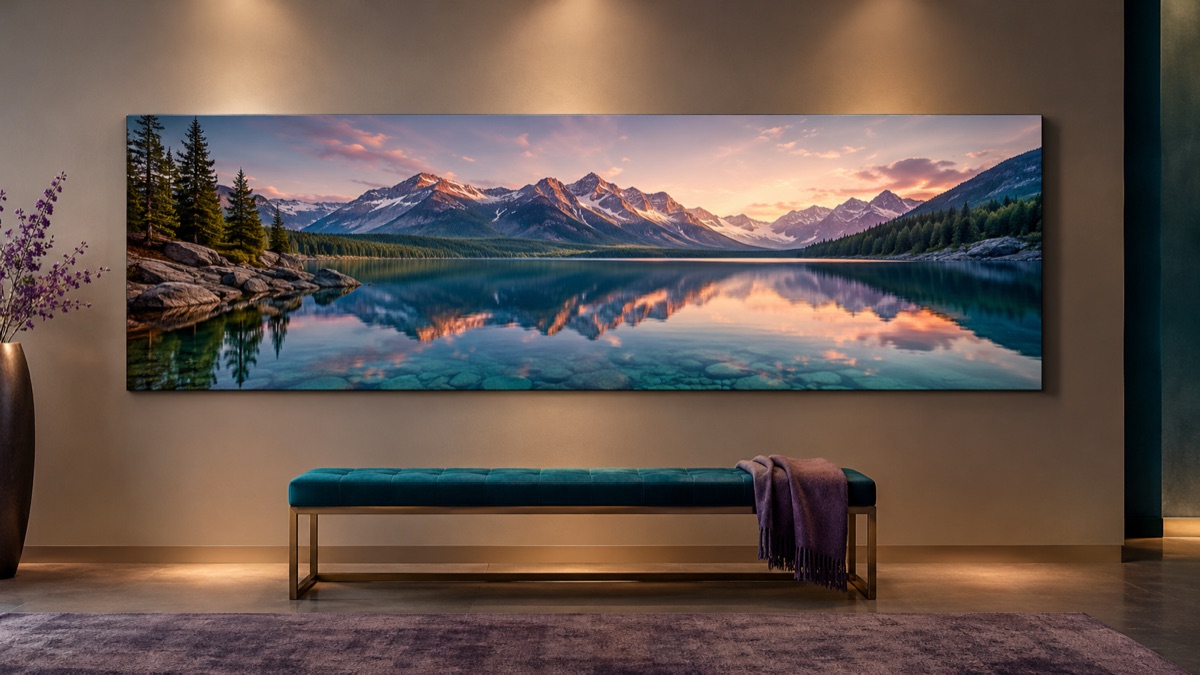
A wide panoramic view of a mountain lake at sunrise, with a continuous horizon and layered peaks.
Line 2: the three layers.
A rocky foreground at the water's edge, a mirror-still lake in the middle distance, and a range of mountains in the far distance.
Line 3: the light.
Soft sunrise light from the right, warm highlights on the peaks, cool shadows in the valley, light haze.
Line 4: the constraints.
No people, no text, no boats, no buildings. Keep the horizon level and the composition continuous across the frame.
The constraints prevent the model from adding a focal object it cannot resolve at the edges.
Choose the aspect ratio
The ratio changes the composition.
| Ratio | Best for | Notes |
|---|---|---|
| 16:9 | Website banners, video | A safe wide format |
| 21:9 | Cinematic banners, print | More demanding, more repetition risk |
| 2:1 | Panorama-style stills | Not automatically equirectangular |
| 3:1 | Very wide strips | High repetition risk |
Start with 16:9 or 21:9. Use 2:1 only when you need that specific shape, and do not confuse it with a 360 image.
Inspect the ends
Wide generations often fail at the edges. The model has more space to fill, so it may repeat a tree, a window, or a mountain.
Check the left and right thirds:
- Is the same object repeated?
- Does the horizon stay level?
- Does the light direction stay consistent?
- Does the detail fade or blur at the edges?
- Is there an unintended subject at the edge?
If the ends repeat, crop them or regenerate with a simpler scene. A slightly narrower crop with a clean horizon is better than a full-width image with an obvious clone.
Use it as a background
A panorama often works best as a background with text over it. That changes the requirements:
- Leave a quiet area for the headline.
- Avoid high-contrast detail behind the text.
- Keep the main subject away from the text zone.
- Check the contrast at the final text size.
- Test the image with the actual copy, not lorem ipsum.
A beautiful panorama can be a bad background if the text has no quiet place to sit.
Panorama versus 360
A generated panorama is a wide flat image. A 360 photo is an equirectangular projection with a seamless wrap. They are not interchangeable.
- A panorama can be a banner, a hero image, or a concept.
- A 360 photo can be viewed in a sphere.
- A 2:1 ratio is necessary for equirectangular, but not sufficient.
- A generated panorama is not guaranteed to wrap.
If you need a 360 workflow, read the 360 photo workflow and inspect the result in a viewer.
Common mistakes
Describing only the far distance. The image becomes a flat wall of mountains.
Forgetting the light direction. A panorama with inconsistent light looks like a collage.
Using a very wide ratio for a complex scene. Repetition and bending increase with width.
Putting text over a busy area. The background fights the message.
Calling a wide image a 360 photo. The projection is not the same.
Ignoring the edges. The center can look great while the ends repeat.
A reusable panorama prompt
A wide panoramic view of [scene], with a continuous horizon.
Foreground: [near object or surface].
Middle distance: [main space or subject].
Far distance: [horizon, skyline, or back wall].
Light: [direction, quality, color].
[Atmosphere: haze, fog, clear, storm.]
No people, no text, no logos.
Keep the horizon level and the composition continuous.
Wide [ratio] composition, photorealistic, natural color.
Quality check before you publish
Look at the full width at 100% and then at thumbnail size. At 100%, scan the horizon for a step, a duplicated tree, or a building that bends. At thumbnail size, check that the scene still reads without the details. Next, follow the light: every object that casts a shadow should agree on the direction. Then inspect both ends of the frame. A wide image often repeats its left edge on the right, so crop a little or extend the canvas before you place text. Finally, open the file on a phone. A panorama that only works on a desktop monitor is not finished; the crop and the contrast have to survive a small screen.
Try the workflow
The panorama image generator page opens the workspace in text-to-image mode with three wide-scene prompts. You can copy a prompt without an account. A generation uses credits; the pricing page lists the current packs and plans.
If you want to extend an existing photo into a wider frame, use the image extender guide. If you need to edit a real 360 photo, start with the 360 workflow.