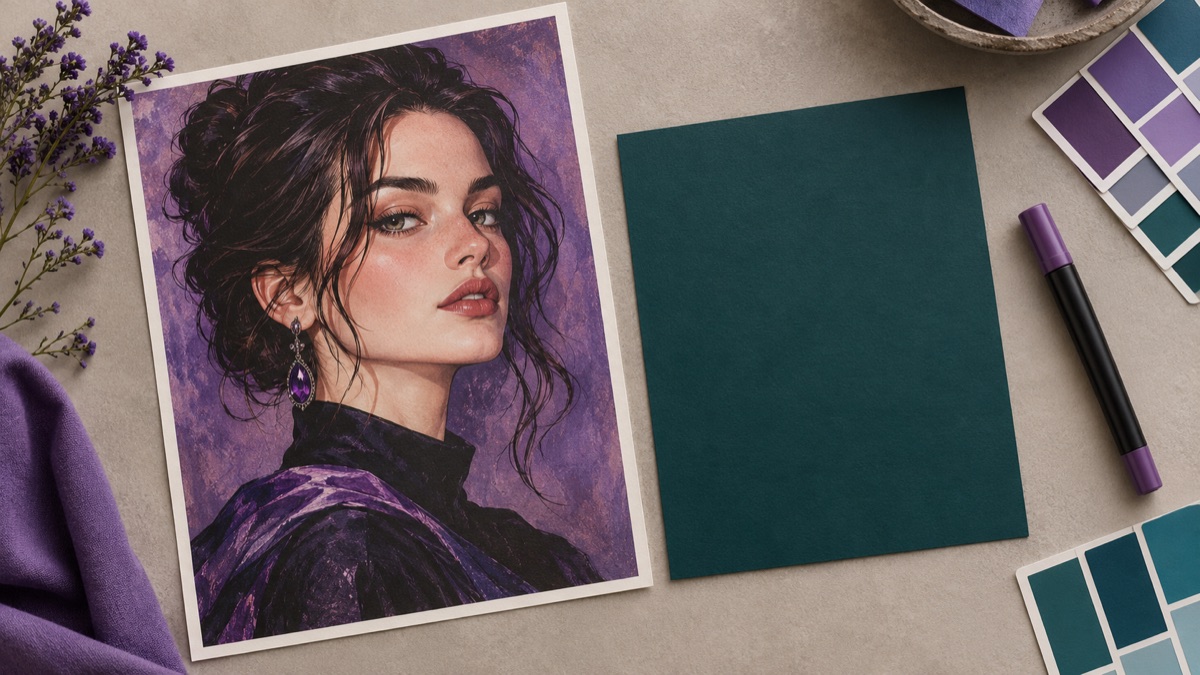
Try this workflow
AI thumbnail generator for video covers
Prompt recipes 1
Prompt recipes 2
Prompt recipes 3
A thumbnail is a composition problem before it is a design problem. At feed size, the viewer sees a shape, a face, a color contrast, and maybe a word. Fine detail disappears. A thumbnail that looks impressive at full size can be unreadable at 120 pixels wide.
This guide covers the composition, the prompt, and the review. It also explains why you should not ask the model to write the title.
The short answer
Choose one subject and put it on one side. Leave the other side quiet for text. Use high contrast and a simple palette. Generate the image without text, then add the title in a design editor. Check the thumbnail at actual feed size before publishing.
What makes a thumbnail readable
A good thumbnail has:
- One clear subject.
- A simple silhouette.
- High contrast between the subject and the background.
- A readable color palette.
- A quiet area for the title.
- An emotional cue: surprise, curiosity, confidence, or tension.
- Enough resolution for the platform.
It does not need:
- A complex scene.
- Several people.
- Small text.
- A logo.
- Fine patterns.
- A lot of detail.
The best test is to shrink the image to the size it will appear in a feed and look at it on a phone.
Step 1: decide the composition
The most reliable thumbnail layout is subject on one side, negative space on the other.
- Subject on the left, text on the right.
- Subject on the right, text on the left.
- Subject in the center, text at the top or bottom.
- Subject small in the frame, environment carrying the mood.
Pick one. Do not put the subject in the middle and the text on top of it; the face and the words will fight.
Step 2: choose the contrast
Contrast is what makes the thumbnail readable at small size.
Useful combinations:
- Warm subject on a cool background.
- Dark subject on a bright background.
- Bright subject on a dark background.
- A single saturated accent against a neutral scene.
Avoid:
- A subject that is the same value as the background.
- A busy background with no quiet area.
- A palette with five competing colors.
- A low-contrast scene that relies on fine detail.
Step 3: write the composition prompt
Name the subject, the side, the empty space, the contrast, and the mood.
A surprised adult host on the left side of the frame, wearing a dark jacket, with a clean dark teal gradient on the right side for a title. High contrast rim light, sharp focus on the face, no text.
For a tech review:
A product hero shot on the right side of the frame, dark charcoal background on the left for a title, cool blue rim light, subtle reflection on a dark surface, no text, no logos.
For a travel vlog:
A dramatic mountain vista with a small hiker on the right, warm sunset light, a quiet sky area on the left for a title, no text.
The phrase "for a title" tells the model to leave space. It usually works, but you still need to check.
Step 4: generate without text
Do not ask the model to write the title. Image models misspell short words, merge letters, and invent characters. The result looks unprofessional and can be unreadable at small size.
Generate a clean plate, then add the title in a design editor with a real font.
A clean plate is also reusable. You can create several title variants for A/B testing without regenerating the image.
Step 5: add the title
When you add text:
- Use a bold, simple font.
- Keep the title to three to five words.
- Use a high-contrast color.
- Add a subtle shadow or outline if the background is busy.
- Keep the text inside the platform's safe area.
- Check the thumbnail at feed size.
The title should add information, not repeat the image. If the image already shows a surprised face, the title should say what the video is about.
Step 6: check the small size
Shrink the thumbnail to the size it will appear in a feed. On a phone, that is often smaller than you expect.
Ask:
- Can you tell what the video is about?
- Is the subject recognizable?
- Is the title readable?
- Does the thumbnail stand out against a white or dark feed?
- Is there any visual clutter?
- Does it look honest about the content?
If the answer is no, simplify. A strong single subject beats a detailed scene.
Platform ratios
| Platform | Ratio | Notes |
|---|---|---|
| YouTube | 16:9 | The classic thumbnail |
| YouTube Shorts | 9:16 | Vertical, subject large |
| Instagram Reels | 9:16 | Keep text away from the edges |
| TikTok | 9:16 | Check the safe area |
| Podcast / course cover | 1:1 | Works in a grid |
Generate the ratio you need. Cropping a 16:9 image to 9:16 often cuts the subject.
Common mistakes
Asking the model to write the title. The spelling will fail.
Putting the subject in the center and the text on top. The face and the title compete.
Using a busy background. It becomes noise at small size.
Using low contrast. The thumbnail disappears in the feed.
Adding too many words. Three to five words is enough.
Using a misleading image. A dramatic thumbnail that does not match the video hurts trust and retention.
Forgetting the safe area. Platform UI can cover the edges.
A reusable thumbnail prompt
[One subject] on the [left/right] side of the frame.
[Quiet background] on the [opposite] side for a title.
[Lighting and contrast].
[One emotional cue: surprised, confident, curious, tense].
[Style: cinematic / clean commercial / documentary].
No text, no logos, no watermarks, no user interface.
[16:9 or 9:16] composition, high contrast, readable at small size.
Check the thumbnail at feed size
Export the image, then look at it at 20% zoom, the size it appears in a crowded feed. The subject should still be recognizable, the background should stay quiet, and the empty side should read as deliberate space rather than a mistake. If you plan to add a title, place three to five words in that space and check the contrast again. Also test the safe area: platform badges and timestamps can cover the bottom or the corner, so keep the face and any critical object away from the edges.
Try the workflow
The AI thumbnail generator page opens the workspace in text-to-image mode with three cover prompts. You can copy a prompt without an account. A generation uses credits; the pricing page lists the current packs and plans.
If you need a frame from an existing video instead of a generated cover, use the browser-based video thumbnail maker. If the video itself needs generating, start with the video prompt guide.